
How to Reorder PDF Pages Online Without Installing an App
A practical guide to rearranging, reordering, and organizing PDF pages online before sending or uploading a document.
Many people only notice page order problems after a PDF is almost ready to send. The document may look fine at first, then page 4 appears before page 2, the signed page sits in the middle, or the attachment that should be at the end appears right after the cover. It is a small mistake, but it can make a file feel unfinished.
That is why searches like reorder PDF pages, rearrange PDF pages, arrange PDF, and organize PDF pages are so common. People are not always trying to edit the words inside a PDF. Often they simply need to put pages in the right order before sending the document to a school, office, client, registration form, or online portal.
This tutorial explains a clean way to reorder PDF pages online with BeresPDF. The goal is practical: choose the right file, preview the pages, arrange them carefully, then download a PDF that reads in the correct order.
When should you reorder PDF pages?
Reordering PDF pages is useful when the pages are already correct, but the sequence is wrong. This happens often with scanned documents, files merged from several sources, application attachments, school administration files, invoices, reports, and documents collected from a phone.
Common examples include:
- A scanned PDF has pages 1, 3, 2, and 4.
- The cover page is accidentally placed after the attachment.
- A signature page should be at the end, but appears near the beginning.
- A file has several supporting documents that need a specific order.
- A teacher, student, or office worker needs one clean PDF before upload.
If the problem is page order, use Rearrange PDF Pages. If the problem is that some pages are sideways, use Rotate PDF Pages first. If the document contains pages you do not need, use Remove PDF Pages or Extract PDF Pages. Choosing the right tool first keeps the workflow shorter and reduces repeated processing.
Step 1: Find the right PDF tool
On the BeresPDF homepage, use the search box and type words such as reorder PDF, rearrange PDF, organize PDF, or arrange pages. The search does not require you to type the full tool name perfectly. Short words can still help you find related tools.
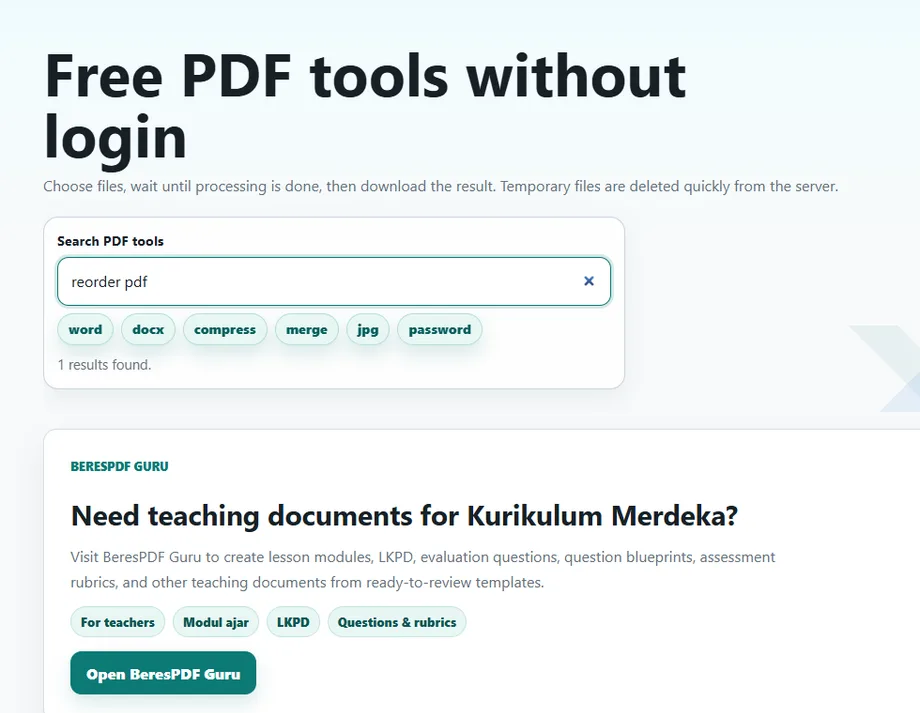
If you already know what you need, you can open Rearrange PDF Pages directly. The tool is made for page order. It does not rewrite the content of the PDF, and it does not ask you to create an account. You choose the file, review it, arrange the pages, and process the result.
This distinction matters. A PDF editor is useful for adding text, signatures, highlights, or drawings. A page organizer is better when the only issue is the order of pages. For many administrative documents, a page organizer is faster and less confusing than opening a full editor.
Step 2: Open Rearrange PDF Pages and choose the file
After opening Rearrange PDF Pages, choose the PDF from your device. Before selecting the file, it helps to open the PDF once in your normal viewer. Check whether the document is complete and whether you are using the final version.
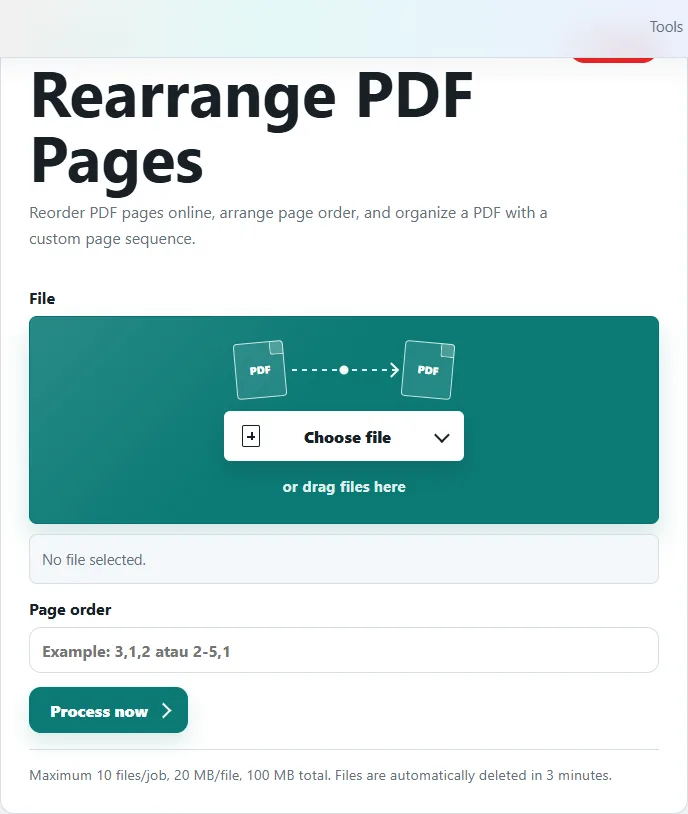
This small check prevents a common mistake: reordering the wrong file. Many folders contain similar names such as document-final.pdf, document-final-1.pdf, scan-new.pdf, or upload-ready.pdf. If the wrong file is selected, the output may still process successfully, but it will not solve the real problem.
A useful habit is to rename the file before processing. For example, use a name such as registration-attachments.pdf or report-to-reorder.pdf. You do not need a perfect naming system, but a clear file name makes it easier to check the selected file list.
Step 3: Check the selected file before processing
After choosing the PDF, look at the file name, type, size, and selected file summary. This is not only a technical detail. It is part of the quality check before the tool starts working.
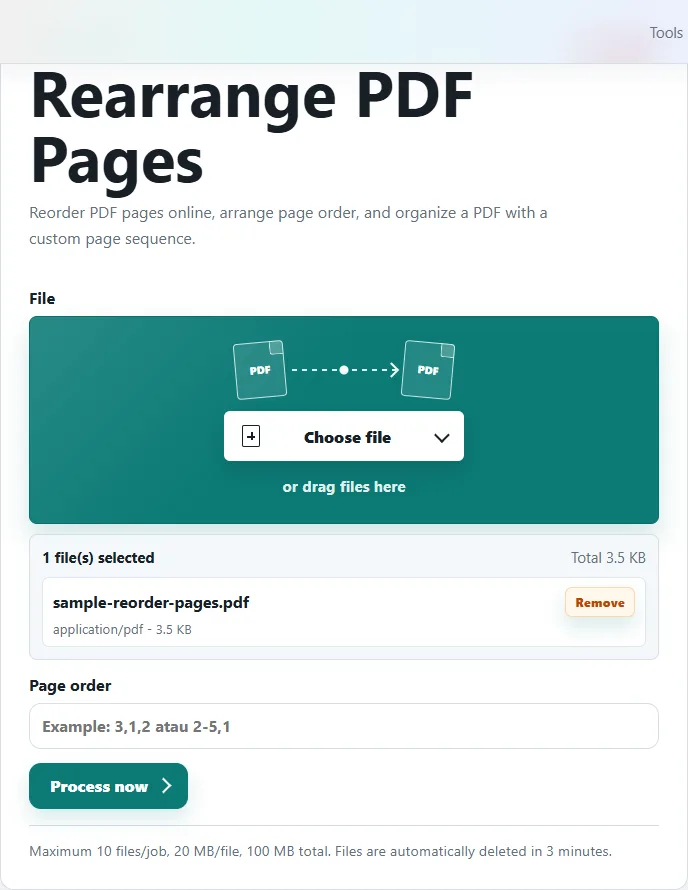
If the file is very large, the preview may take longer to prepare. If the file is password-protected, you may need to unlock it first with a password you are allowed to use. If the file is a scanned document, page thumbnails are especially helpful because scanned pages can look similar at a glance.
For important documents, do not rush this step. A few seconds of checking can prevent you from downloading a result that still has the wrong file or missing pages.
Step 4: Decide the correct page order
Before moving pages, write down the order you want. This sounds old-fashioned, but it works. If the PDF has only four pages, you might remember the order. If it has 20 or 50 pages, relying on memory becomes risky.
For example, if the correct order should be cover, form, identity document, certificate, receipt, and attachment, use that structure as your guide. Do not arrange pages only by thumbnail appearance. Some pages may look almost identical, especially forms, tables, and scanned documents with similar layouts.
A simple checklist:
- The cover or main form appears first.
- Supporting documents follow the order requested by the recipient.
- Signature and approval pages appear where they belong.
- Empty pages are removed if they are not needed.
- The last page feels like a natural ending, not a page accidentally left behind.
If one page is sideways, rotate it before or after reordering depending on the tool workflow. If several pages are not needed, remove them before sending the final file. The cleaner the page structure, the easier the PDF is to read.
Step 5: Reorder, process, and download the result
Once the sequence looks right, process the PDF and wait until the result is ready. Keep the page open while the tool works. After the download button appears, save the result immediately.
Do not send the downloaded file without opening it first. This final check is important. Open the result and inspect the first page, a few middle pages, and the last page. Make sure the page numbers, section breaks, signatures, tables, and attachments are in the expected order.
If the PDF is for a formal submission, rename the output file clearly. A good name is easier for the recipient to understand. For example, use something like application-attachments-ordered.pdf instead of download.pdf.
Reorder PDF vs split PDF vs remove PDF pages
These tools sound similar, but they solve different problems.
Rearrange PDF Pages is for changing page order. Split PDF is for separating a PDF into smaller files. Remove PDF Pages is for deleting pages you do not want in the final document. Extract PDF Pages is for saving selected pages into a new file.
If you use the wrong tool, the result may still be valid but not useful. For example, Split PDF can separate pages, but it is not the most direct tool when you only want to move page 5 before page 2. Remove PDF Pages can delete pages, but it will not rearrange the remaining pages into a new order.
The best workflow is usually:
- Use Rotate PDF Pages if pages are sideways.
- Use Remove PDF Pages if there are blank or unnecessary pages.
- Use Rearrange PDF Pages to set the final order.
- Use Compress PDF only after the document is already correct.
Tips for better results
Start from the original file when possible. Avoid reordering a PDF that has already been compressed many times, especially if it contains scans or images. Repeated processing can make page previews harder to read.
Use page thumbnails, but do not trust thumbnails alone for formal documents. Open the final result. If the PDF has printed page numbers, compare them with the order shown by the PDF viewer. Some documents have cover pages, roman numerals, or unnumbered attachments, so the printed number may not match the viewer page number.
If the document will be uploaded to a form with a strict file size limit, reorder first and compress later. Compressing too early can make you repeat the process and may reduce quality more than necessary.
Is it safe to reorder PDF pages online?
For everyday files such as assignments, public forms, reports, school documents, invoices, or non-confidential attachments, an online tool can save time. BeresPDF is designed for temporary processing: you choose a file, the server processes it, and the result is available for download for a limited time.
Still, use good judgment. If a document contains highly sensitive information such as banking records, medical data, legal contracts, private identity files, or internal company documents, consider whether online processing is appropriate. For sensitive files, an offline workflow may be safer.
A practical habit is simple: upload only the file you need, download the result immediately, check it, and keep your original file until you are sure the reordered version is correct.
Final check before sending
A reordered PDF should feel natural to read from top to bottom. If the recipient has to guess where a form starts, where the attachment belongs, or why the signed page appears early, the file is not ready yet.
Use Rearrange PDF Pages when the pages are correct but the order is not. Use Rotate PDF Pages for sideways scans, Remove PDF Pages for unwanted pages, and Compress PDF only after the document is final. That sequence keeps the workflow simple and helps you send a cleaner PDF.
No comments yet. Be the first to leave a comment.