
How to Compress a PDF Online for Free Without Installing an App
A practical guide to reducing PDF file size online for school tasks, job applications, administrative documents, and everyday uploads.
Have you ever failed to upload a document because the PDF file was too large? This often happens when submitting school assignments, job applications, administrative files, scanned certificates, or documents that need to be sent through email and chat apps. Many websites limit uploads to 1 MB, 2 MB, or 5 MB, while scanned PDFs can easily go beyond that.
This guide explains how to compress a PDF online with BeresPDF, when compression is useful, what to check after the file is processed, and how to keep the result readable. The goal is practical: you should be able to follow the steps from a phone or laptop without installing extra software.
Why PDF files become too large
PDF size depends on what is inside the document. A text-only PDF is usually small. A scanned document, photo-based PDF, certificate bundle, or file made from many images can become much larger.
Common reasons include:
- The document contains many scanned images.
- Images inside the PDF use a high resolution.
- The file has many pages.
- The PDF was created from large phone photos.
- Several large PDFs were merged into one file.
- The file has not been optimized before upload.
If your PDF contains many images, compression can often make a visible difference. If the PDF is mostly text and already small, the size may not change much. That is normal and does not mean the tool failed.
How to compress a PDF with BeresPDF
Start by opening the Compress PDF tool on BeresPDF. You can find it from the tools menu, through search on the homepage, or by opening the Compress PDF page directly.
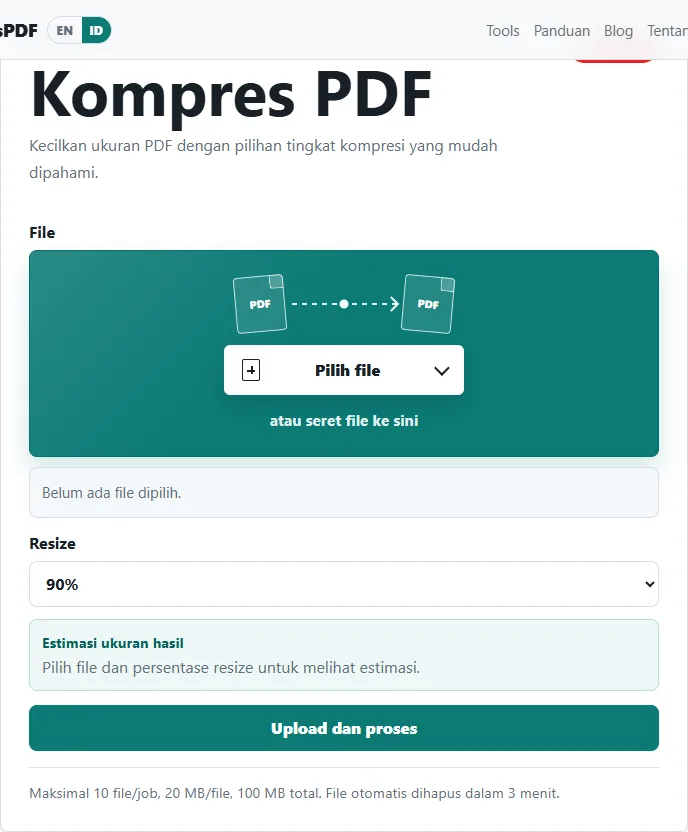
Choose the PDF file you want to reduce. Use the final version of the document whenever possible, such as a job application file, scanned certificate, school assignment, report, or administrative document. If you need to process more than one file, make sure the files stay within the upload limits shown on the page.
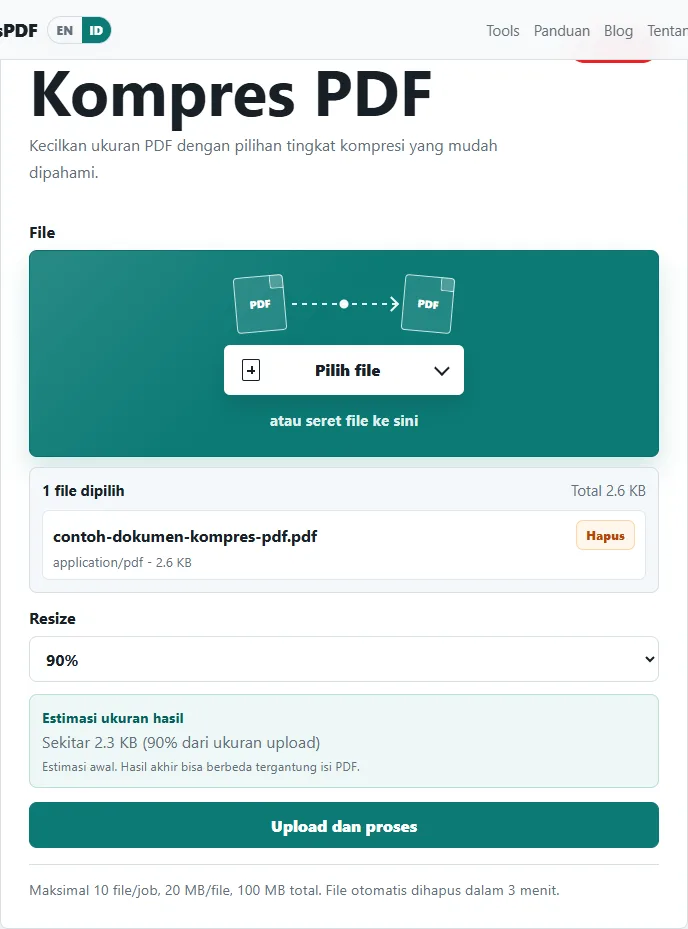
Before clicking the process button, check the file name and size. This small habit helps prevent mistakes, especially when several documents in the download folder have similar names. Once the file is correct, choose the available resize or compression level, then start the process.
After processing is complete, BeresPDF shows a download button. Download the result right away and open it to check whether the text, images, signatures, and stamps are still readable.
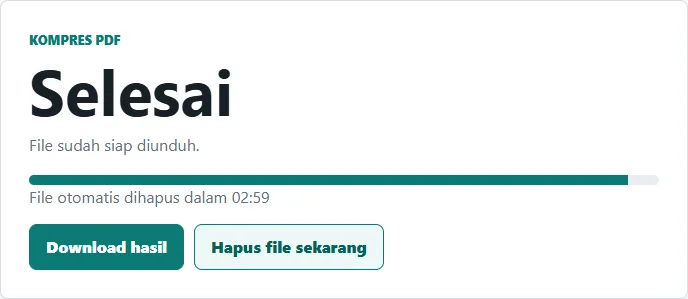
The basic workflow is simple:
- Open Compress PDF on BeresPDF.
- Choose a PDF from your device.
- Check the file name and size.
- Select a reasonable compression level.
- Upload and process the file.
- Download the compressed PDF.
- Open the result and check its readability.
Choose a sensible compression level
Do not focus only on getting the smallest possible file. For official documents, readability still matters. A very small PDF that looks blurry can cause problems, especially if it contains ID numbers, tables, signatures, stamps, or small text.
As a simple rule, start with a moderate compression option. If the file is still too large, reduce it further. For example, if the upload limit is 2 MB and your file is 3 MB, you may not need the strongest compression immediately. Try a middle setting first, then check the result.
For scanned PDFs, compression usually has a stronger effect. For PDFs exported from Word and mostly made of text, the file may already be efficient. If the size only drops a little, the document may simply not have much unnecessary data to remove.
When should you compress a PDF?
PDF compression is useful when a website, email service, or form has a file size limit. Many people only notice the problem after the upload fails, which can be frustrating when a deadline is close.
Common situations include:
- Uploading job application files.
- Sending school or college assignments.
- Preparing teacher, student, or school administration documents.
- Sending scanned IDs, certificates, or official letters.
- Uploading files to registration portals.
- Sending documents through chat apps more quickly.
If the file needs to be printed again, avoid compressing too aggressively. If it only needs to be read on screen or uploaded as an attachment, moderate compression is usually enough.
Tips to keep the PDF readable
A few small habits can improve the result before and after compression.
- Start from a clear source file.
- Avoid dark, tilted, or blurry document photos.
- Crop empty areas before turning phone photos into PDF.
- Avoid compressing the same document many times.
- Check the first, middle, and last page after download.
- Look closely at small text, tables, signatures, and stamps.
- Keep the original file until you are sure the compressed PDF is usable.
If the file is still too large after compression, inspect the content. Sometimes the main issue is not the PDF container, but large images inside it. In that case, you can reduce the source images, remove unnecessary pages, or use Split PDF to keep only the part you actually need.
Is online PDF compression safe?
For everyday documents such as assignments, public forms, simple reports, and non-confidential files, online tools can save time. BeresPDF is designed for temporary processing: you upload the file, the tool processes it, the result becomes available for download, and temporary files are deleted after a short time.
Still, use personal judgment. If a document contains highly sensitive information, such as bank records, medical documents, private contracts, internal company files, or identity data that should not leave your device, consider whether an online workflow is appropriate. For those cases, an offline tool may be better.
A simple safe habit is to upload only the file you need, download the result immediately, check it, and avoid leaving unnecessary copies on your device.
FAQ about online PDF compression
Is BeresPDF free to use? Yes. The main BeresPDF tools can be used without logging in. Choose a tool, upload the file, wait for processing, and download the result.
Does compression reduce quality? Compression reduces file size and may affect image quality on some documents. Always open the downloaded result before sending it or uploading it elsewhere.
Can I compress PDF files on a phone? Yes. If your mobile browser can open the website and choose a file from your device, you can use Compress PDF from your phone.
Why is my PDF still large after compression? It may contain many high-resolution images, scanned pages, or unnecessary pages. Try removing pages you do not need, splitting the document, or reducing image size before creating the PDF.
Do I need to install an app? No. BeresPDF works in the browser, so you do not need to install an additional app for basic PDF compression.
Final note
Compressing a PDF is not just about making the file as small as possible. The better goal is to make it small enough for upload while keeping the document readable. For school tasks, job applications, administrative documents, registration files, and everyday PDFs, Compress PDF on BeresPDF can be a quick option without installing software.
Start with a clear file, choose a sensible compression level, and check the result after downloading. That simple workflow helps prevent failed uploads and unreadable documents.
Утилита под названием Раздеватор позволяет обнажать девушек с помощью изображений. Описываемый бот задействует сложные методы для анализа портретов. <a href="https://razdevator.tech/">раздеватор бесплатно без регистрации</a>
Свое дело является ключевым фактором прогресса общества. Оно открывает новые рабочие места и приносит населению стабильный заработок. <a href="https://typical-moscow.ru/oleg-belaj-o-znachenii-zelenoj-povestki-i-esg-strategii-v-ustojchivom-razvitii-trinfiko/">олег белай</a> Кроме того, свое дело стимули
La práctica responsable del juego se define como una filosofía que busca mantener el control respecto a el juego y minimizar los daños potenciales vinculados a las apuestas. Supone establecer topes de dinero antes de empezar a jugar, así como detectar las señales que indican un problema. https://www.apkfiles.com/apk-622658/descargar-mobcash-apk-oficial-gesti-n-de-caja-m-vi Además, fomenta elecciones responsables y pretende que la el entretenimiento continúe siendo el propósito central al el juego. En definitiva, esta práctica ayuda a las personas a preservar el dominio sobre sus hábitos así como a disfrutar la experiencia de manera segura.
On the resource, visitors can locate a lot of helpful information. This resource offers in-depth materials on various topics. Whether just starting out or experienced, you will discover content worthwhile. Much of the data is conveniently categorized, which makes it quick to find what you're looking for. https://gameo.jp/dqwalk/15151
The proxy functions as an type of service connecting a client and the internet. When a user connects through the proxy, their requests go to the proxy first, and then it sends the requests to the destination on your behalf. <a href="https://webvpn.org/vpn/vpn-with-tor/">VPN VPN with Tor Tor over VPN vs VPN over Tor, when the combination helps, and how to judge an anonymous VPN.</a> Such a setup allows you to conceal your IP address, overcome regional blocks, and improve privacy. That said, many proxy servers can be unsafe, so one should choose a trustworthy provider.
На данном веб-сайте удастся отыскать огромное количество познавательных сведений. Здесь собраны различные исследования на интересные вопросы. Всякий пользователь имеет возможность почерпнуть 
Термоизоляция играет критическую роль в удержании комфортной температуры внутри дома. Эффективная защита позволяет значительно снизить расходы на отопление и охлаждение помещений. https://homirussia.ru/cozy/1539-perspektivy-razvitiya-samovosstanavlivayus
Readers Japanese comics and series may <a href=https://manga-online-free.com/>manga</a> to find interesting series. Available titles offers drama, so every reader can pick something enjoyable. New chapters allow fans to keep up with favorite series
More details one click <a href=https://montenegro-company-registration.com/>source</a>