How to Rearrange, Rotate, Extract, and Optimize PDF Pages Online
A practical guide to reordering PDF pages, rotating sideways scans, extracting selected pages, and optimizing PDF file size before sharing or uploading.
Managing PDF pages sounds simple until a document needs to be submitted quickly. A scanned file may have sideways pages. A merged PDF may have the wrong order. A long report may only need pages 3 to 6. A final document may still be too large for email, WhatsApp, a school portal, or an online registration form.
BeresPDF Search Console data is starting to show the same pattern. Queries such as rearrange PDF, reorder PDF, reorder PDF pages, rotate PDF online free, how to optimize a PDF, rotate PDF free, and extract PDF are appearing in search performance. That means people are not only looking for PDF conversion. They also want to clean up pages before a file is shared, printed, or uploaded.
This guide explains a practical workflow for rearranging PDF pages, rotating pages, extracting selected pages, and optimizing file size. The goal is not to use as many tools as possible. The goal is to choose the shortest clean path from the PDF you have to the PDF you actually need.
Start with the problem, not the tool name
Before opening any tool, look at the PDF and decide what problem you are solving. This small step prevents repeated processing.
If the pages are correct but the order is wrong, use Rearrange PDF pages or a reorder PDF tool. If scanned pages are sideways or upside down, use Rotate PDF. If you only need specific pages, use Extract PDF pages. If the PDF is already correct but too large, use Compress PDF or an optimize PDF workflow.
A clean order usually looks like this:
- Open the PDF and check the first, middle, and last pages.
- Decide whether the issue is order, rotation, page selection, or file size.
- Fix the page structure first.
- Reduce file size only after the document is final.
- Download the result and open it again before sending it.
This prevents unnecessary compression and makes it easier to catch mistakes before the file is used.
Rearrange or reorder PDF pages
Reorder PDF pages means placing PDF pages in the order you want. People also search for rearrange PDF, arrange PDF pages, or reorder pages in PDF. This is common with scanned documents, school administration files, application attachments, and PDFs merged from multiple sources.
For example, a file may contain pages 1, 3, 2, and 4 because the scan order was wrong. In another case, a signature page may appear at the front even though it belongs at the end. Some registration files also require a specific order: form, identity document, certificate, transcript, and supporting attachments.
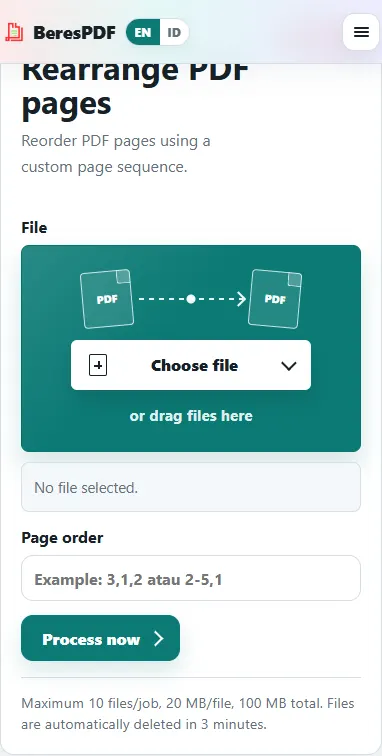
When using a rearrange PDF tool, do not rely only on memory. Open the original file and write down the intended order. If preview is available, use it to check the cover page, key pages, and final page. After processing, open the downloaded result and confirm the order again.
Rotate PDF online free for sideways scans
Rotate PDF is useful when pages are sideways, upside down, or uncomfortable to read. This often happens with scanned files, phone photos, certificates, forms, or documents collected from different devices.
A rotation issue may look small, but it can annoy the person reading the document. If a file is used for school, work, registration, or administration, consistent page orientation makes it look more ready to review.
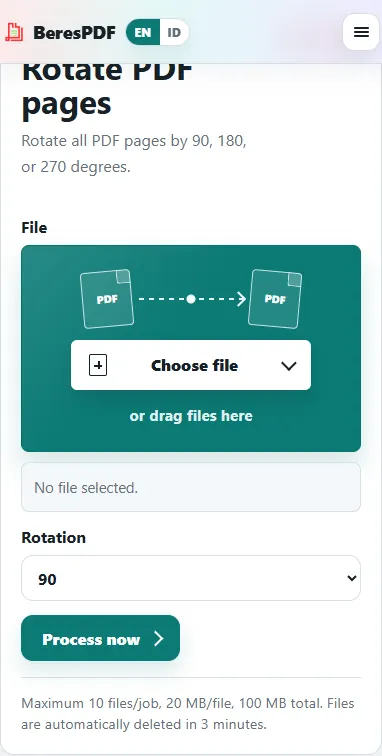
Before rotating, check whether every page needs the same rotation or only a few pages do. If the entire scan is upside down, rotating the full document can be fine. If only one or two pages are sideways, rotate only those pages.
Useful habits:
- Check all pages before rotating.
- Watch for landscape tables or wide images.
- Open the result after processing.
- Make sure signatures, stamps, tables, and images are not turned the wrong way.
Extract PDF pages when you only need part of a file
Extract PDF is used when you need selected pages from a longer document. You may want pages 3 to 6 from a report, one chapter from a module, a signed page, or a specific attachment from a larger file.
Many people search for extract PDF because they do not want to send the entire document. That makes sense. A shorter PDF is easier to read, faster to send, and often safer when other pages are not relevant to the recipient.
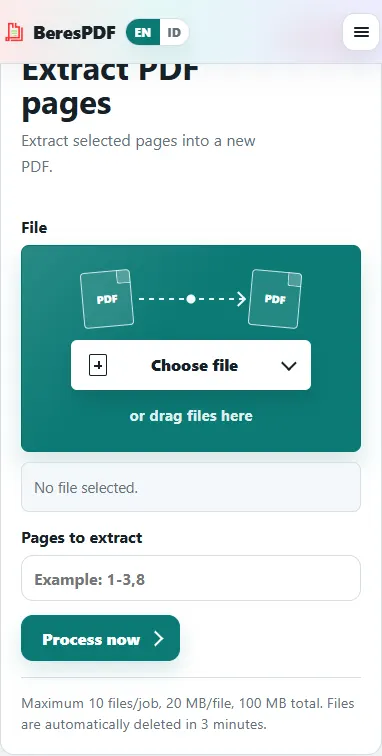
The important part is page numbering. The printed page number inside the document may not match the PDF viewer page number. A PDF may include a cover page, table of contents, roman numerals, or unnumbered attachments. Use the viewer page position, not only the printed number.
If you need one page range, write it clearly before processing, such as 3-6 or 12-18. If you need several separate ranges, check whether the tool supports multiple ranges or process one range at a time to avoid confusion.
Optimize PDF after the page structure is correct
Optimize PDF or Compress PDF should usually come after page order, rotation, and extraction are already correct. If you compress first and then still need to rotate, extract, or reorder pages, you may end up processing the file again. Repeated processing can reduce image quality, especially for scanned documents.
Optimize PDF is helpful when a file is too large for email, WhatsApp, a school portal, a registration system, or a website upload limit. Queries such as how to optimize a PDF usually come from a practical need: the file is finished, but the size is still not acceptable.
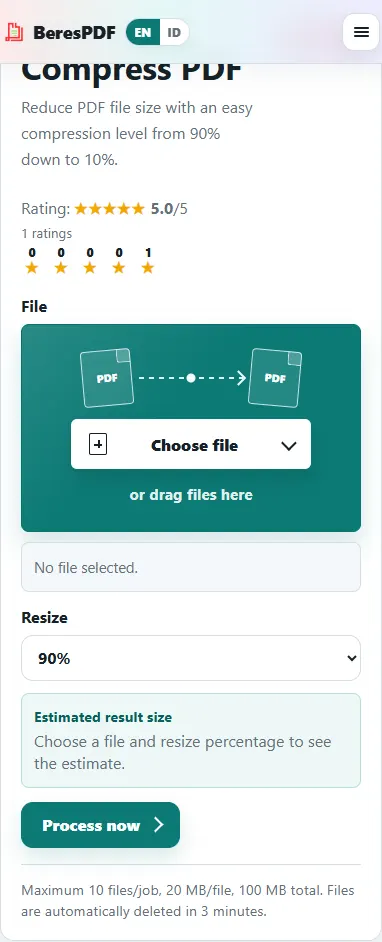
Do not chase the smallest possible file without checking readability. Open the result and inspect small text, tables, QR codes, signatures, stamps, and images. A PDF that is very small but hard to read can create a new problem.
For official documents, choose a setting that keeps the document readable. For screen-only sharing, stronger compression may be acceptable. For a file that may be printed later, use a more careful setting.
A practical workflow example
Suppose you have a scanned school administration document. Some pages are sideways, the order is not correct, and the final file is too large. A safer workflow would be:
- Open the PDF and review every page.
- Rotate pages that have the wrong orientation.
- Rearrange pages if the order is not correct.
- Extract selected pages if the recipient does not need the full document.
- Compress the PDF after the structure is final.
- Download the result and open it before sending.
This order keeps the process calmer. You fix the shape of the document first, then reduce size at the end. If something goes wrong, you can return to the original file without losing too much quality.
Common mistakes to avoid
The most common mistake is compressing a PDF before the pages are clean. After that, the user realizes that some pages still need rotation or reordering, so the file must be processed again. Another common mistake is extracting the wrong pages because the printed page number differs from the PDF viewer page number.
Some users also reorder pages by guessing from the file name instead of looking at the page preview. File names help, but they are not always reliable after documents are merged or renamed. Page preview is safer.
Finally, do not skip the final check. Open the downloaded PDF. Make sure no pages are missing, the orientation is correct, the text is readable, and the file size matches your upload requirement.
Which BeresPDF tools match these searches?
For reorder PDF or rearrange PDF pages, use Rearrange PDF pages. For rotate PDF online free, use Rotate PDF. For extract PDF, use Extract PDF pages. For how to optimize a PDF, use Compress PDF after the document structure is final.
Split PDF and Remove PDF pages can help when a document is too long or contains unnecessary pages. PDF to Text and Extract PDF Images can help when you need content from inside the PDF rather than the full page layout.
Final note
A clean PDF workflow usually follows a simple order: reorder pages if they are mixed up, rotate pages if orientation is wrong, extract pages if you only need part of the file, then optimize or compress the PDF after the document is final.
BeresPDF provides lightweight tools for this workflow without requiring login. The most important step is still your final review. Open the downloaded file before sending or uploading it. A well-arranged PDF is easier to read, easier to approve, and more professional for the recipient.
No comments yet. Be the first to leave a comment.